2.0 Basic Hygiene: Foundation: Mastering Workload Identity Security in Microsoft Entra ID - An Exploratory Guide
Blog 2: Basic Hygiene & Native Controls for Workload Identities (Free Tier)

In our previous blog, we explored workload identities and how to discover the various types of service principals within your Microsoft Entra ID tenant. Now that you better understand your workload identity landscape, it's time to roll up our sleeves and implement some fundamental security hygiene practices. This blog focuses on actions you can take using the free tier of Microsoft Entra ID, leveraging PowerShell for auditing and management using beta cmdlets.
The Importance of Workload Identity Hygiene
Neglected service principals with overly broad permissions, unknown owners, or stale credentials are prime targets for attackers. Basic hygiene practices are your first line of defence:
Accountability: Every service principal should have a clear owner responsible for its lifecycle and purpose.
Least Privilege: Service principals should only possess the permissions necessary to perform their tasks.
Credential Management: Secrets and certificates must be managed securely, regularly reviewed, and rotated or removed when no longer needed or if compromised.
Regular Reviews: Periodically review service principals, their permissions, and their activity to identify and remediate risks.
Reviewing Service Principal Owners
The owner of an application registration (and by extension, its primary service principal in the home tenant) is responsible for it.
Using PowerShell (Beta Cmdlets):
First, ensure you're connected to Microsoft Graph with appropriate permissions (e.g., Application.Read.All, Directory.Read.All, Organization.Read.All, User.Read.All to resolve owner display names if they are users):
# Ensure connection (scopes for this blog's activities)
# Example: Connect-MgGraph -Scopes "Application.Read.All","Directory.Read.All","Organization.Read.All","AuditLog.Read.All","User.Read.All"
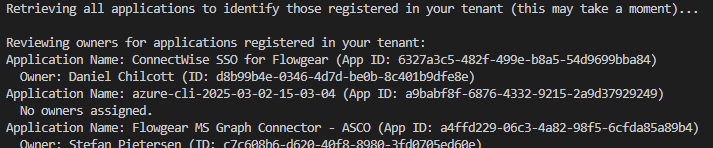
To list applications registered in your tenant and their owners:
# Get your tenant ID to identify applications registered in your tenant
$myTenantIdObject = Get-MgBetaOrganization
$myTenantIdGuid = [guid]$myTenantIdObject.Id # Corrected: Direct property access

# Fetch all applications, then filter client-side for those effectively "owned" by your organization.
# This includes apps where AppOwnerOrganizationId matches your tenant, or where it's null (often legacy or certain app types).

Write-Host "Retrieving all applications to identify those registered in your tenant (this may take a moment)..."

$allApplications = Get-MgBetaApplication -All -Property "Id,DisplayName,AppId,AppOwnerOrganizationId"

$myOrgApps = $allApplications | Where-Object {(-not $_.AppOwnerOrganizationId) -or ($_.AppOwnerOrganizationId -eq $myTenantIdGuid)}

Write-Host "`nReviewing owners for applications registered in your tenant:"
foreach ($app in $myOrgApps) {
    Write-Host "Application Name: $($app.DisplayName) (App ID: $($app.AppId))"
    try {
        $owners = Get-MgBetaApplicationOwner -ApplicationId $app.Id
        if ($owners) {
            foreach ($owner in $owners) {
                $ownerDisplayName = if ($owner.AdditionalProperties.ContainsKey("displayName"))
{
                    $owner.AdditionalProperties["displayName"]
                } else {
                    # Attempt to get display name if it's a known object type like user
                    try {
                        $userOwner = Get-MgBetaUser -UserId $owner.Id -Property DisplayName -ErrorAction SilentlyContinue
                        if ($userOwner) { $userOwner.DisplayName } else { "N/A (ID: $($owner.Id))" }
                    } catch { "N/A (ID: $($owner.Id))" }
                }
                Write-Host "  Owner: $ownerDisplayName (ID: $($owner.Id))" # Displaying the ID of the owner object itself
            }
        } else {
            Write-Host "  No owners assigned."
        }
    } catch {
        Write-Warning "  Failed to retrieve owners for $($app.DisplayName): $($_.Exception.Message)"
    }
}
Action:
Ensure all internally registered applications have at least one (preferably two for resilience) active and appropriate owner.
Investigate applications with no owners or owners who have left the organisation.
Reviewing Service Principal Credentials (Secrets and Certificates)
Service principals authenticate using credentials: client secrets (passwords) or certificates. These are defined on the application object.
Using PowerShell (Beta Cmdlets):
# === CONFIGURATION ===
$appIdToReview = "cdd842a1-9261-4491-9508-33afc54105c6"  # Replace with the actual App ID you want to review

# === CONNECT TO GRAPH (IF NOT ALREADY CONNECTED) ===
# Ensure necessary scopes are requested if connecting for the first time.
# For this script, "Application.Read.All" is sufficient if only reading.
if (-not (Get-MgContext)) {
    Write-Host "Connecting to Microsoft Graph..."
    Connect-MgGraph -Scopes "Application.Read.All" # Add other necessary scopes if needed for broader session use
}

# === FETCH APPLICATION BY APP ID ===
Write-Host "Fetching application details for App ID: $appIdToReview"
$application = Get-MgBetaApplication -Filter "appId eq '$appIdToReview'" -Property "id,displayName,passwordCredentials,keyCredentials"

if ($application) {
    Write-Host "Reviewing credentials for: $($application.DisplayName)"

    # === PASSWORD CREDENTIALS (SECRETS) ===
    if ($application.PasswordCredentials) {
        Write-Host "`n  Password Credentials (Secrets):"
        $application.PasswordCredentials | ForEach-Object {
            Write-Host "    Key ID: $($_.KeyId)"
            Write-Host "    Display Name: $($_.DisplayName)"
            Write-Host "    Hint: $($_.Hint)"
            Write-Host "    Expires: $($_.EndDateTime)"
            Write-Host "    Created: $($_.StartDateTime)"
            $timeToExpiry = New-TimeSpan -Start (Get-Date) -End ($_.EndDateTime)
            if ($timeToExpiry.TotalDays -lt 0) {
                Write-Host "    Status: EXPIRED" -ForegroundColor Red
            } elseif ($timeToExpiry.TotalDays -lt 30) {
                Write-Host "    Status: Expires within 30 days" -ForegroundColor Yellow
            } else {
                Write-Host "    Status: Active" -ForegroundColor Green
            }
            Write-Host "" # Blank line for readability
        }
    } else {
        Write-Host "`n  No password credentials found."
    }

    # === KEY CREDENTIALS (CERTIFICATES) ===
    if ($application.KeyCredentials) {
        Write-Host "`n  Key Credentials (Certificates):"
        $application.KeyCredentials | ForEach-Object {
            Write-Host "    Key ID: $($_.KeyId)"
            Write-Host "    Type: $($_.Type)"
            Write-Host "    Usage: $($_.Usage)"
            Write-Host "    Display Name: $($_.DisplayName)"
            Write-Host "    Expires: $($_.EndDateTime)"
            Write-Host "    Created: $($_.StartDateTime)"
            $timeToExpiry = New-TimeSpan -Start (Get-Date) -End ($_.EndDateTime)
            if ($timeToExpiry.TotalDays -lt 0) {
                Write-Host "    Status: EXPIRED" -ForegroundColor Red
            } elseif ($timeToExpiry.TotalDays -lt 30) {
                Write-Host "    Status: Expires within 30 days" -ForegroundColor Yellow
            } else {
                Write-Host "    Status: Active" -ForegroundColor Green
            }
            Write-Host "" # Blank line for readability
        }
    } else {
        Write-Host "`n  No key credentials found."
    }
} else {
    Write-Host "Application with App ID '$appIdToReview' not found." -ForegroundColor Red
}
Action:
Minimise Secrets: Prefer certificates or, even better, managed identities or workload identity federation where possible. Certificates are generally more secure than client secrets.
Regular Rotation: Implement a process for rotating credentials before they expire.
Remove Unused/Expired Credentials:
To remove a password credential:
Remove-MgBetaApplicationPasswordCredential -ApplicationId $application.Id -KeyId $credentialKeyIdTo remove a key credential:
Remove-MgBetaApplicationKeyCredential -ApplicationId $application.Id -KeyId $credentialKeyId(Always ensure a new, working credential is in place before removing an old one if the application is in use.)
Short Lifespans: Configure shorter expiry periods for new credentials (e.g., 6-12 months instead of the maximum 24 months for secrets).
Identifying and Removing Unused Service Principals & Credentials
An unused service principal or credential is a standing risk. Checking the last sign-in date can identify inactivity.
Using PowerShell (Beta Cmdlets) to Check Last Sign-in:
Checking the last sign-in for service principals accurately across all types can be nuanced. The primary source is the ServicePrincipalSignInLogs.
Method 1: Querying Sign-in Logs
This method is more granular and relies on the ServicePrincipalSignInLogs. For searching beyond the default Entra ID retention (typically 30 days), ensure logs are sent to Log Analytics (see Supporting Blog B). This script checks recent sign-ins within the default retention.
$spObjectIdToReview = "05f3a58e-85d8-4f5c-8e8c-eb68869ab229"  # This is the correct Object ID
if (-not (Get-MgContext)) {
    Connect-MgGraph -Scopes "AuditLog.Read.All", "Directory.Read.All"
}
$servicePrincipal = Get-MgBetaServicePrincipal -ServicePrincipalId $spObjectIdToReview
if ($servicePrincipal) {
    Write-Host "`nChecking sign-ins for: $($servicePrincipal.DisplayName)"
    Write-Host "Object ID: $($servicePrincipal.Id)`n"
    # Requires AuditLog.Read.All scope
    $latestSignIn = Get-MgBetaAuditLogSignIn -Filter "servicePrincipalId eq '$($servicePrincipal.Id)'" -Top 1 -Sort "createdDateTime DESC"
    if ($latestSignIn) {
        Write-Host "✅ Last sign-in detected on: $($latestSignIn.CreatedDateTime)"
    } else {
        Write-Host "⚠️  No sign-in activity found in the default retention period (typically 30 days)." -ForegroundColor Yellow
    }
} else {
    Write-Host "❌ Service Principal with Object ID '$spObjectIdToReview' not found." -ForegroundColor Red
}
Method 2: Reviewing Sign-in Activity (Further Example of Querying Audit Logs)
This method also demonstrates querying the audit logs for sign-in information, reinforcing the technique shown in Method 1. This approach uses the Get-MgBetaAuditLogSignIn cmdlet.
# === CONFIGURATION ===
$spObjectIdToReview = "cdd842a1-9261-4491-9508-33afc54105c6"  # Replace with actual Object ID

# === CONNECT TO GRAPH IF NEEDED ===
if (-not (Get-MgContext)) {
    Connect-MgGraph -Scopes "AuditLog.Read.All", "Directory.Read.All"
}

# === FETCH SERVICE PRINCIPAL ===
$servicePrincipal = Get-MgBetaServicePrincipal -ServicePrincipalId $spObjectIdToReview

if ($servicePrincipal) {
    Write-Host "`nReviewing sign-in activity for: $($servicePrincipal.DisplayName)"
    Write-Host "Object ID: $($servicePrincipal.Id)`n"

    # === FETCH LATEST SIGN-IN (FROM AUDIT LOGS) ===
    # Requires AuditLog.Read.All scope
    $latestSignIn = Get-MgBetaAuditLogSignIn -Filter "servicePrincipalId eq '$($servicePrincipal.Id)'" -Top 1 -Sort "createdDateTime DESC"

    if ($latestSignIn) {
        Write-Host "✅ Last sign-in detected on (from Audit Logs): $($latestSignIn.CreatedDateTime)"
        Write-Host "   App Display Name: $($latestSignIn.AppDisplayName)"
        Write-Host "   Resource Display Name: $($latestSignIn.ResourceDisplayName)"
        Write-Host "   IP Address: $($latestSignIn.IpAddress)"
        Write-Host "   Status: $($latestSignIn.Status.ErrorCode)" # Corrected to access ErrorCode
    } else {
        Write-Host "⚠️  No sign-in activity found in the default retention period (typically 30 days) for this SP." -ForegroundColor Yellow
    }
} else {
    Write-Host "❌ Service Principal with Object ID '$spObjectIdToReview' not found." -ForegroundColor Red
}

Action:
Define Inactivity Threshold: Establish a policy for what constitutes an "inactive" service principal (e.g., no sign-ins for 90 or 180 days).
Investigate Inactive SPs: For service principals flagged as inactive:
Confirm their purpose and if they are still needed.
Check with the identified owner.
Disable and Delete:
Disable: If an SP is confirmed unused but you're not ready to delete, you can turn off its sign-in capability:
# To disable a service principal (use its Object ID)
# $spToDisable_ObjectId = "OBJECT_ID_OF_SP_TO_DISABLE"
# Update-MgBetaServicePrincipal -ServicePrincipalId $spToDisable_ObjectId -AccountEnabled:$false
Delete: Once confirmed safe, delete the service principal. This also removes its permissions.
# To delete a service principal (use its Object ID)# $spToDelete_ObjectId = "OBJECT_ID_OF_SP_TO_DELETE"# Remove-MgBetaServicePrincipal -ServicePrincipalId $spToDelete_ObjectIdBe cautious: Deleting a service principal used by an enterprise application will break the application. For an application registered in your tenant, you might need to delete the application registration (Remove-MgBetaApplication -ApplicationId $app.Id), which would also delete its home-tenant service principal.
Basic Proposed CIS-Aligned Controls (Free Tier Focus)
While many CIS Benchmark controls map to premium features, the principles of good hygiene align well with free-tier capabilities. The following are proposed controls, adapted in the spirit of CIS benchmarks.
Proposed Control: Regularly Review and Manage Service Principal Credentials
Description: Ensure all service principal credentials (secrets and certificates) are tracked, have defined expiry dates, and are regularly reviewed.
Rationale: Stale or compromised credentials are a primary attack vector.
Impact: Requires administrative effort for review and rotation.
Audit Procedure (PowerShell): Use the credential review script provided earlier (the user-improved version for specific apps or the broader audit script below). Identify credentials that are expiring soon or have already expired.
Remediation: Rotate credentials nearing expiry. Remove expired or unused credentials.
Proposed Control: Assign Ownership to Service Principals
Description: Ensure every internally managed application (and its service principal) has an identifiable owner.
Rationale: Ownership ensures accountability for the service principal's existence, permissions, and lifecycle.
Impact: Requires initial effort to identify and assign owners.
Audit Procedure (PowerShell): Use the owner listing script provided earlier to identify applications with missing or inappropriate owners.
Remediation: Assign appropriate owners to unowned applications.
Proposed Control: Remove or Disable Unused Service Principals
Description: Regularly identify and remove or disable service principals no longer in use.
Rationale: Reduces the attack surface by eliminating unnecessary identities.
Impact: Before deletion, a process is required to determine inactivity and confirm that an SP is no longer needed.
Audit Procedure (PowerShell): Use the sign-in activity scripts to identify SPs with no recent sign-ins. Cross-reference with application owners.
Remediation: Disable SPs for a probation period, then delete if confirmed unnecessary.
PowerShell Scripts for Basic Audits
The scripts provided in this blog form the basis of your free-tier audits. You can expand them to:
Iterate through all applications/service principals.
Export results to CSV for tracking.
Flag items that breach your defined policies (e.g., credentials expiring in < X days, SPs inactive for > Y days, apps with no owners).
Example: A Broader Credential Expiry Audit (User-Improved Version)
# Configuration
$DaysToExpiryWarning = 30

# Ensure you are connected to Graph: Connect-MgGraph -Scopes "Application.Read.All","Organization.Read.All"
$myTenantIdObject = Get-MgBetaOrganization
$myTenantIdGuid = [guid]$myTenantIdObject.Id # Corrected: Direct property access

# Fetch all applications
Write-Host "Retrieving all applications in your tenant to audit credentials (this may take a moment)..."
$allApplications = Get-MgBetaApplication -All -Property "id,displayName,appId,appOwnerOrganizationId,passwordCredentials,keyCredentials"

# Include apps with no AppOwnerOrganizationId or matching your tenant (considered "my org" apps)
$myOrgApps = $allApplications | Where-Object {
    (-not $_.AppOwnerOrganizationId) -or ($_.AppOwnerOrganizationId -eq $myTenantIdGuid)
}

# Initialize report
$expiringCredentialsReport = @()

foreach ($app in $myOrgApps) {
    # Check Password Credentials
    if ($app.PasswordCredentials) {
        foreach ($cred in $app.PasswordCredentials) {
            $timeToExpiry = New-TimeSpan -Start (Get-Date) -End ($cred.EndDateTime)
            $status = "Active"
            if ($timeToExpiry.TotalDays -lt 0) { $status = "EXPIRED" }
            elseif ($timeToExpiry.TotalDays -lt $DaysToExpiryWarning) { $status = "Expires Soon" }

            if ($status -ne "Active") {
                $expiringCredentialsReport += [PSCustomObject]@{
                    ApplicationName = $app.DisplayName
                    ApplicationId   = $app.AppId
                    CredentialType  = "Secret"
                    DisplayName     = $cred.DisplayName
                    KeyId           = $cred.KeyId
                    Expires         = $cred.EndDateTime
                    Status          = $status
                }
            }
        }
    }

    # Check Key Credentials
    if ($app.KeyCredentials) {
        foreach ($cred in $app.KeyCredentials) {
            $timeToExpiry = New-TimeSpan -Start (Get-Date) -End ($cred.EndDateTime)
            $status = "Active"
            if ($timeToExpiry.TotalDays -lt 0) { $status = "EXPIRED" }
            elseif ($timeToExpiry.TotalDays -lt $DaysToExpiryWarning) { $status = "Expires Soon" }

            if ($status -ne "Active") {
                $expiringCredentialsReport += [PSCustomObject]@{
                    ApplicationName = $app.DisplayName
                    ApplicationId   = $app.AppId
                    CredentialType  = "Certificate"
                    DisplayName     = $cred.DisplayName
                    KeyId           = $cred.KeyId
                    Expires         = $cred.EndDateTime
                    Status          = $status
                }
            }
        }
    }
}

# Output to console
$expiringCredentialsReport | Format-Table -AutoSize

# Export to CSV with dynamic timestamped path
$timestamp = Get-Date -Format "yyyyMMdd-HHmmss"
$exportPath = ".\ExpiringWorkloadCredentials-$timestamp.csv"
$expiringCredentialsReport | Export-Csv -Path $exportPath -NoTypeInformation

Write-Host "`nReport saved to: $exportPath" -ForegroundColor Cyan
Summary
Implementing these basic hygiene practices for your workload identities within the Microsoft Entra ID free tier significantly enhances your security posture. Regular reviews, clear ownership, and diligent credential management are fundamental.
In Blog 3, we will explore how Microsoft Entra Workload Identities Premium can elevate security by introducing Conditional Access for service principals.