Partner Centre Admin MFA Assessment: A Comprehensive PowerShell Compliance Tool
Why partner security compliance matters more than ever—and how to audit every admin account

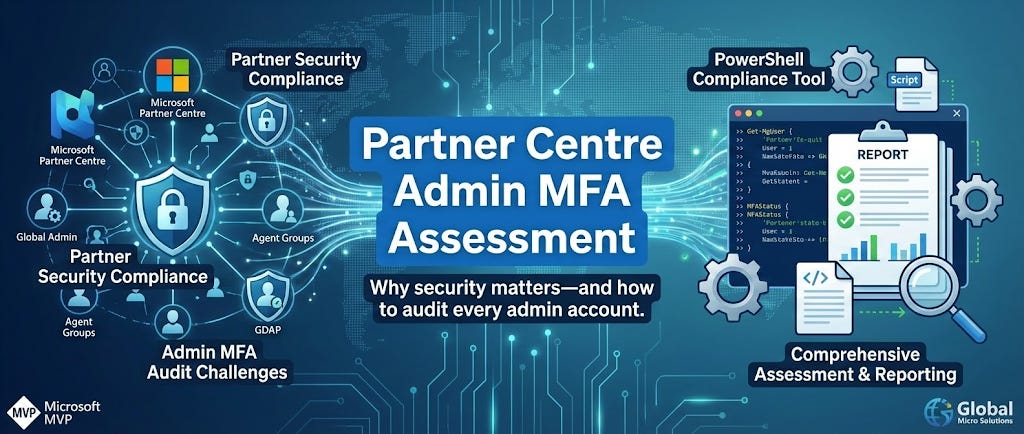
If you’ve ever wanted to verify your Partner Centre MFA compliance with confidence—and understand exactly which accounts Partner Centre is monitoring—this post is for you.
Before we dive into the technical solution, let me explain why I built this tool and why partner security compliance has never been more critical.
Microsoft’s Renewed Focus on Partner Security
At Microsoft Ignite 2025, Microsoft announced the Support Services Partner designation—a significant evolution in how Microsoft recognises and rewards partners who deliver exceptional customer experiences. This isn’t just another badge to collect; it’s a fundamental shift in how Microsoft is raising the bar for partner quality and security.
Why the Support Services Designation Matters
The Support Services designation publicly recognises partners who have demonstrated the capability to deliver high-quality support experiences. It’s designed to help customers easily identify providers with a proven track record—think of it as a professional seal of approval, similar to ISO certification but specialised for the Microsoft ecosystem.
For customers, this designation signals:
The partner has passed rigorous third-party audits (conducted by ISSI)
Their support operations, staff skills, and performance metrics meet Microsoft’s standards
They maintain high customer satisfaction scores
They’ve invested in the infrastructure and processes needed for enterprise-grade support
For partners who achieve it:
Marketplace visibility with a dedicated support services filter (early 2026)
Highest level of case prioritisation and rapid escalation with Microsoft
Performance-based invoice credits to reduce support costs
Competitive differentiation in an increasingly crowded market
Security: The Foundation of Partner Excellence
Here’s the critical point: you cannot achieve the Support Services designation without first meeting Microsoft’s mandatory security requirements. The designation requires holding a current Solutions Partner designation (Modern Work, Security, Azure, or Biz Apps), and all of these require demonstrable security compliance.
Beginning October 1, 2025, Microsoft is enforcing updated CSP authorisation eligibility requirements for direct bill partners, distributors, and indirect resellers:
MFA for all administrative users in the partner tenant—no exceptions
A designated security contact within Partner Centre
24-hour response times to security alerts (doesn’t apply to indirect reseller partners)
Transition to GDAP (Granular Delegated Admin Privileges) with least-privilege roles
For existing CSP partners, these requirements are validated annually during the anniversary month of your original CSP onboarding, starting January 2026. Miss your validation window due to compliance gaps, and you risk losing your CSP authorisation.
From April 2026, MFA will be mandatory for all Partner Centre API access. Partners who don’t comply risk losing the ability to transact in the CSP programme or manage customer tenants entirely.
This is why I needed to audit our MFA enablement with surgical precision—not just to tick a compliance box, but because our customers deserve a partner whose own house is in order.
The Problem: Partner Centre’s Opaque MFA Statistics
If you’ve ever looked at your Partner Centre security dashboard and seen something like “X of Y admins have MFA enabled,” you’ve probably asked yourself: which Y accounts is it counting? And if there’s a gap, who exactly needs attention?
If you’ve tried to match Partner Centre’s numbers against your Entra ID admin roles, you’ve probably noticed it doesn’t add up. That’s because Partner Centre counts admins differently than you might expect:
Core Entra ID admin roles (Global Admin, Security Admin, etc.)
Partner Centre agent groups (AdminAgents, HelpdeskAgents, SalesAgents)
PIM eligible assignments (users who can activate roles)
GDAP security groups (groups with delegated Access to customer tenants)
Disabled accounts (which may or may not be counted)
To gain complete visibility into our admin population, I built a comprehensive PowerShell script that queries all these sources, checks MFA status for each user, and presents comparison scenarios to help you understand Partner Centre’s counting methodology.
Why Another MFA Script?
There are many PowerShell scripts available to check MFA status—I have a few in my public repository. But none of them focus specifically on Partner Centre and its unique compliance requirements.
The Partner Centre MFA Compliance Challenge
Microsoft’s Partner Centre MFA requirements come with specific constraints that catch many partners off guard:
You must choose one enforcement method:
Conditional Access enforcing-resistant MFA, OR
Security Defaults
Microsoft does not support a mix of both, nor does it recognise per-user MFA for compliance purposes. If you’ve been using per-user MFA settings, Partner Centre won’t count those users as compliant.
Conditional Access has blind spots: Even with Conditional Access configured, some Partner Centre roles—particularly the agent groups (AdminAgents, HelpdeskAgents, SalesAgents)—may not be covered by your existing policies. These groups aren’t Entra ID directory roles, so policies targeting “All administrators” or specific directory roles won’t apply to them.
Microsoft won’t tell you who’s non-compliant. The frustrating part is that if you open a support ticket asking which users are failing the MFA check, Microsoft and partner support teams cannot tell you. They only receive anonymised output from their compliance scans. You’re on your own to find the answers.
This is precisely why I built this script—to give partners the visibility that Microsoft’s own tools don’t provide.
Existing Scripts Miss Partner Centre Scope
Most MFA assessment scripts check Entra ID directory roles and stop there. That’s fine for general tenant security audits, but Partner Centre’s admin population is broader:
AdminAgents, HelpdeskAgents, SalesAgents aren’t Entra ID roles—they’re Partner Centre-specific groups that existing scripts miss entirely
GDAP security groups grant delegated access to customer teAccess, making those users effectively “admins” from a Partner Centre perspective
PIM eligible assignments mean users can become admins on demand, but won’t show up in standard role queries
If you’re only checking the nine core Entra ID roles, you’re potentially missing half your Partner Centre admin population. That’s why I needed a dedicated script that understands Partner Centre’s specific compliance scope.
Introducing the Partner Centre Admin MFA Assessment Script
This script queries Microsoft Graph to enumerate every possible “admin” that Partner Centre might be counting, then checks their MFA enablement status. Here’s what it covers:
Core Partner Centre Monitored Roles (9): Global Administrator, Authentication Administrator, Billing Administrator, Conditional Access Administrator, Exchange Administrator, Helpdesk Administrator, Security Administrator, SharePoint Administrator, User Administrator
Extended Privileged Roles (28+): Application Administrator, Cloud Device Administrator, Intune Administrator, Privileged Role Administrator, and many more
PIM Eligible Assignments: Users who don’t have active role assignments but can activate roles through Privileged Identity Management
Partner Centre Agent Groups: AdminAgents, HelpdeskAgents, SalesAgents—the CSP-specific groups that Partner Centre definitely monitors
GDAP Security Groups: All security groups used for Granular Delegated Admin Privileges access assignments to customer tenants
Role-Assignable Groups: Expands group membership to identify users assigned via nested groups
Key Features
The script provides:
De-duplicated user counting across all role sources
MFA method enumeration (Authenticator, FIDO2, Phone, Windows Hello, OATH tokens)
Account status detection (enabled vs disabled accounts marked separately)
Assignment type tracking (Direct, Group, PIM Eligible, GDAP)
Multiple comparison scenarios to help match Partner Centre’s counting
CSV export for further analysis or audit evidence
Sample Output
============================================================
=== COMPLETE MFA STATUS SUMMARY ===
============================================================

Total Unique User Accounts: 54
  Enabled accounts:   51
  Disabled accounts:  3

Role Category Breakdown:
  Core Roles (9):         10
  Extended Roles:         8
  PIM Eligible Only:      2
  Partner Centre Groups:  7
  GDAP Only:              27

MFA Status (Enabled Accounts Only):
  ✓ MFA Enabled:  51
  ✗ MFA Disabled: 0

============================================================
PARTNER CENTRE COMPARISON SCENARIOS
============================================================

If Partner Centre counts...                         MFA Score
  Core roles, enabled users only:                   10/10
  Core roles, all users (incl. disabled):           10/10
  All roles, enabled users only:                    51/51
  All roles, all users (incl. disabled):            54/54
What the Script Reveals
Running this script against a typical CSP tenant reveals insights you simply can’t get from the Partner Centre dashboard:
AdminAgents group membership—often contains users not in any Entra ID admin role, but Partner Centre definitely counts them
GDAP security groups—can add dozens of additional users that aren’t visible when you only look at directory roles
Overlapping memberships—the same user might appear in multiple roles and groups, but should only be counted once
Disabled accounts—may or may not be included in Partner Centre’s count, depending on timing
The script’s comparison scenarios help you align with Partner Centre’s methodology by presenting different counting approaches side by side. In our tenant, we found that the combination of core roles, Partner Centre agent groups, and GDAP security groups provided a more comprehensive view of everyone with administrative access—more comprehensive than the nine core Entra ID roles alone.
Our Approach: FIDO2 Security Keys for Everyone
At Global Micro Solutions, all our users authenticate with FIDO2 security keys. For any organisation serious about security, this should be table stakes—not a differentiator. When you look at our script output, you’ll see entries like:
✓ JJ Milner (jj@globalmicro.co.za)
  Methods: Phone (mobile), FIDO2 Security Key, Windows Hello for Business, Microsoft Authenticator
We’ve made a deliberate investment in hardware security keys across our organisation—not just for admins, but for all staff. Here’s why you should consider the same approach:
Why FIDO2 Keys Over Phone-Based Authentication?
Phishing resistance: FIDO2 keys are cryptographically bound to the specific site you’re authenticating to. Even if a user clicks a phishing link, the key won’t work on a fake site. Phone-based OTPs and push notifications can be intercepted or socially engineered through “MFA fatigue” attacks.
No shared secrets: Unlike TOTP codes or SMS, no secret is stored on a server, so it cannot be intercepted, replicated, or stolen in a server breach. The private key never leaves the hardware device.
Speed and simplicity: Tap a key, and you’re in. No waiting for SMS codes, no switching to an authenticator app, no push notification delays. Our users consistently report that FIDO2 is faster than traditional MFA.
Offline capability: Keys work without mobile signal, WiFi, or battery—critical when you’re troubleshooting in a server room or customer site with poor connectivity.
But Phone-Based Passkeys Are Free!
You’re absolutely right—Microsoft Entra security defaults provide MFA at no additional licensing cost, and phone-based authentication (Authenticator app, SMS, voice calls) costs nothing beyond what you’re already paying.
However, free doesn’t mean zero cost. Consider the administrative burden:
Device lifecycle management: When staff change phones, lose phones, or upgrade phones, you’re dealing with MFA re-enrolment. With 50+ staff, this results in a constant stream of support tickets.
Personal device dependency: Phone-based MFA ties your corporate security to personal devices you don’t control. What happens when someone’s phone battery dies at 3pm?
Number portability issues: Staff who change mobile providers or port their numbers may be locked out.
Travel complications: International roaming, local SIM swaps, and connectivity issues all become authentication problems.
FIDO2 keys eliminate all of this. We issue a YubiKey to each staff member as part of onboarding. It’s corporate property, it’s standardised, and it works everywhere. When someone leaves, we revoke the key and reassign it.
The Investment Case
A YubiKey 5 NFC costs around $50-60 per key. For an organisation of 50 users, that’s a one-time investment of $2,500-3,000. Compare that to:
Support ticket cost for MFA issues (estimate two tickets per user per year × $25 per ticket = $2,500/year)
Productivity loss from authentication friction
Risk exposure from phishable MFA methods
The keys pay for themselves within the first year, and they last for years. We’ve had some YubiKeys in service for over five years without a single failure.
Practical Implementation Tips
If you’re considering the move to FIDO2:
Start with admins: Require FIDO2 for all privileged accounts first. This is your highest-risk population.
Keep the phone as a backup: Don’t remove phone-based MFA entirely—it’s useful for recovery.
Issue two keys per user: one primary and one backup, stored securely. Nothing worse than a single point of failure.
Use Windows Hello for Business alongside corporate devices. WHfB provides seamless FIDO2-equivalent security without requiring a physical key for every login.
Document the break-glass process: Your emergency access accounts need FIDO2 keys stored in a safe, with documented recovery procedures.
Required Microsoft Graph Permissions
The script requires these Graph API scopes:
User.Read.AllDirectory.Read.AllRoleManagement.Read.DirectoryUserAuthenticationMethod.Read.AllPolicy.Read.AllApplication.Read.AllGroup.Read.AllGroupMember.Read.AllRoleEligibilitySchedule.Read.DirectoryRoleAssignmentSchedule.Read.DirectoryDelegatedAdminRelationship.Read.All
Why This Matters for CSP Partners
Microsoft’s Partner Centre security requirements aren’t optional—they’re mandatory for CSP partners. The stakes have never been higher:
Immediate Consequences of Non-Compliance
Suspended Partner Centre access—you can’t transact
Blocked customer transactions—your revenue stops
GDAP revocation—you lose access to customer tenants
Inaccessibility for Solutions Partner designations—blocking your path to Support Services
The Bigger Picture: Customer Trust
As MSPs, we have privileged access to hundreds or thousands of customer tenants through GDAP. A compromised admin account in our tenant could lead to breaches across all customers. This isn’t hypothetical—supply chain attacks through MSPs have made headlines repeatedly.
When we pursue the Support Services designation, we’re not just collecting a badge. We’re demonstrating to our customers that we’ve invested in our security posture, operational excellence, and third-party validation, which proves we’re worthy of their trust.
Customers are increasingly asking the right questions:
“What security certifications do you hold?”
“How do you secure your own environment?”
“What MFA methods do your staff use?”
“Do you have GDAP with least-privilege roles?”
Having answers backed by verifiable compliance—whether that’s a 100% MFA score in Partner Centre, ISO 27001 certification, or the Support Services designation—differentiates you from competitors who can’t demonstrate the same rigour.
Get the Script
The complete script is available on my GitHub repository:
Partner Centre Admin MFA Assessment
Clone it, run it against your tenant, and gain complete visibility into which accounts Partner Centre is monitoring for MFA compliance. If you find any edge cases or improvements, pull requests are welcome!
Practical Tips
Based on my experience building and running this script:
Check Partner Centre agent groups first—AdminAgents is almost certainly in the count
Don’t forget GDAP security groups—these can add many users you weren’t tracking
Disabled accounts may still count—remove users from groups before disabling
Partner Centre sync takes time—wait 24 hours after changes before expecting updated statistics
Break-the-glass accounts need MFA too—use FIDO2 keys stored securely offline
Alignment with Security Best Practices and Partner Requirements
This script directly supports Microsoft’s partner security requirements and several industry frameworks:
Microsoft Partner Centre Requirements
MFA for all administrative users—the script identifies every admin and their MFA status
Security posture assessment—provides evidence for your Partner Centre security score
GDAP compliance verification—enumerates all security groups with delegated access
CIS Controls
Control 5: Account Access—identifying all privileged accounts
Control 6: Access Control Management—verifying MFA on admin accounts
Control 16: Application Software Security—ensuring secure access to admin portals
ISO 27001:2022
Access: Access control—comprehensive admin account inventory
A.5.17: Authentication information—MFA method documentation
A.8.2: Privileged access rights—privileged account identification and protection
Support Services Designation Readiness
The Support Services designation requires holding a Solutions Partner designation, which in turn requires meeting all mandatory security requirements. Running this script and achieving 100% MFA coverage are foundational steps toward that goal. The CSV export provides audit evidence that can support your case rate and capability evaluations.
What’s Next?
I’m considering extending this script to:
Run across multiple customer tenants via GDAP (help customers achieve their own MFA compliance)
Generate executive-ready reports with RAG status indicators
Integrate with ticketing systems for remediation workflows
Check compliance with specific Conditional Access policies
Track progress toward Support Services designation prerequisites
What features would be most valuable for your organisation? Drop a comment below—I love hearing your use cases!
If you’re a CSP partner serious about achieving the Support Services designation, start by ensuring complete visibility into your admin population. Run this script, verify your compliance, and consider the investment in FIDO2 keys. Your customers—and Microsoft—will notice the difference.
Thanks for reading! Subscribe for free to receive new posts and support my work.
Disclaimer: This script is provided “as is” without warranty of any kind. It performs read-only queries and does not modify your tenant configuration. Always verify results against your Partner Centre security dashboard, as Microsoft’s counting methodology may change. Refer to the official CSP Authorisation requirements documentation for definitive compliance guidance.
git hub link is not correct